
 Print
Print
|
|
|
|



Defect Data (Images) Viewer
The defect data viewer is an auxiliary tool that allows access to the contents of the Defect Data File, which is a very large file containing image data and data of non-image sensors, such as Mass. This tool is not part of the defect database but provided for your convenience.
To open the Defect Data Viewer: From Lane Overview or Sensor Overview mode, select Tools  > Reporting > Defect Data Viewer.
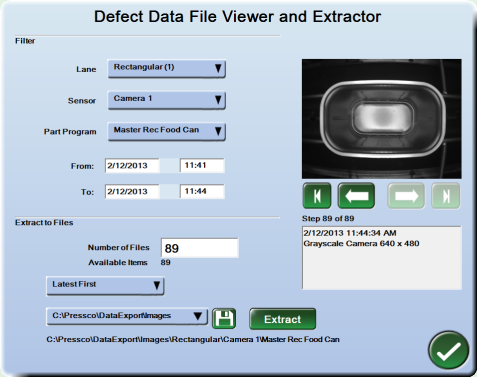
If the lane was online when you opened the viewer, the database will continue to collect defect data and images. However, the information in the viewer reflects only the data as of the time you opened the viewer. To see more recent data, you must close and re-open the Defect Data Viewer.
Filtering images
In the upper part of the menu, you can filter the images you want from the database. Choose from lane, sensor, part program, and date range. This affects the list of images available to view on the right of the menu, as well as the images you may export from the lower part of the menu.
Viewing defect images
Images are displayed on the right side of the viewer. Use the buttons below the image to scroll through the available images.
Extracting images
In the lower part of the menu, you can extract images from the database for use in another location or during part program setup. The images available for extracting are determined by the filter settings in the upper menu.
To extract images:
- Enter the Number of Files if you want to save a different number of images than the available items.
- Click the disk icon
 to change the location to which to extract the images, and browse to the desired location.
 - Click the Extract button to save the selected images.
Print
|
Published: 11/12/2015 11:37:00 AM ©2015 ACME Ltd. All rights reserved. |
 |